
Blockchain intelligence in chat: connecting GraphSense over MCP
Pathfinder
is where investigations happen, and the graphsense CLI
is fast for the messy middle, but it is technical: you have to write the code that filters, projects and processes the data. A lot of that plumbing and exploration work no longer has to be done by hand. An AI agent can do it for you, if you give it a way to reach the data.
That is what the GraphSense MCP server does: it gives an AI assistant a set of tools it can use directly. So instead of writing a script, you can simply ask. A question like “who does this address send money to, and are any of them exchanges?” turns into a real lookup against real on-chain data instead of a guess. And more and more analysts start a question the same way they start everything else now, by typing it into a chat window.
This post walks through connecting that MCP server to Le Chat , Mistral’s chat interface. We add the connector, enable it in a conversation, run a few queries, and finally wire up an agent that does the legwork for you.
We pair it with Le Chat for a specific reason: both Mistral and Iknaio are European, so the whole stack (model, chat product, and blockchain-intelligence backend) stays inside the EU. For analysts working case data under GDPR, that data sovereignty is reason enough to set up this particular pairing.
What it looks like
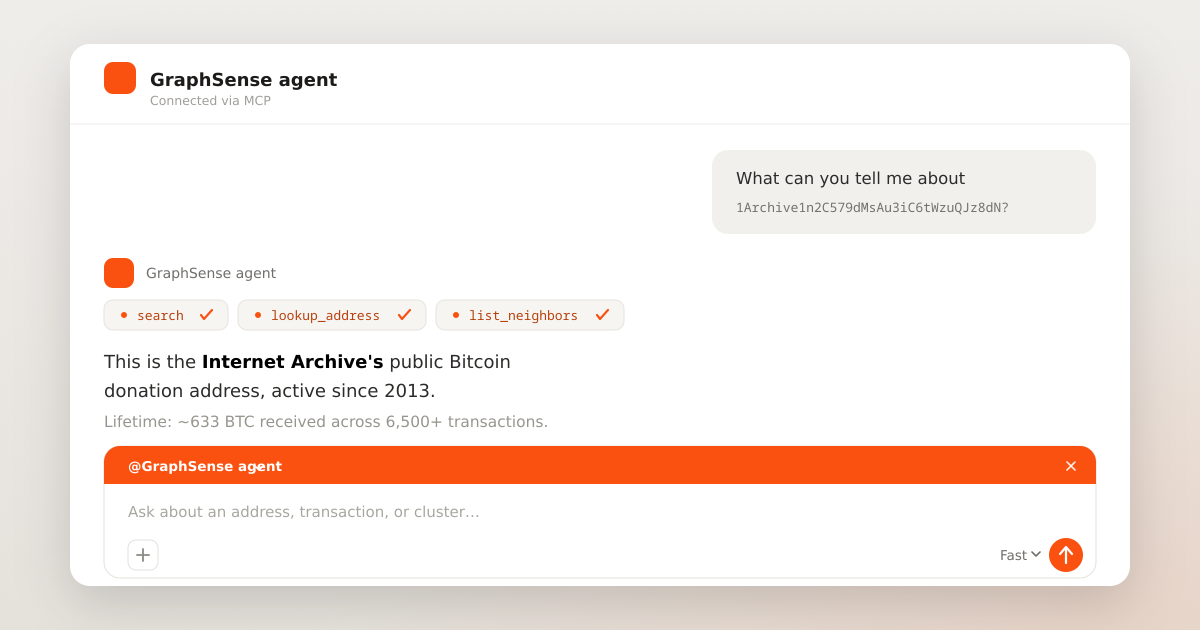
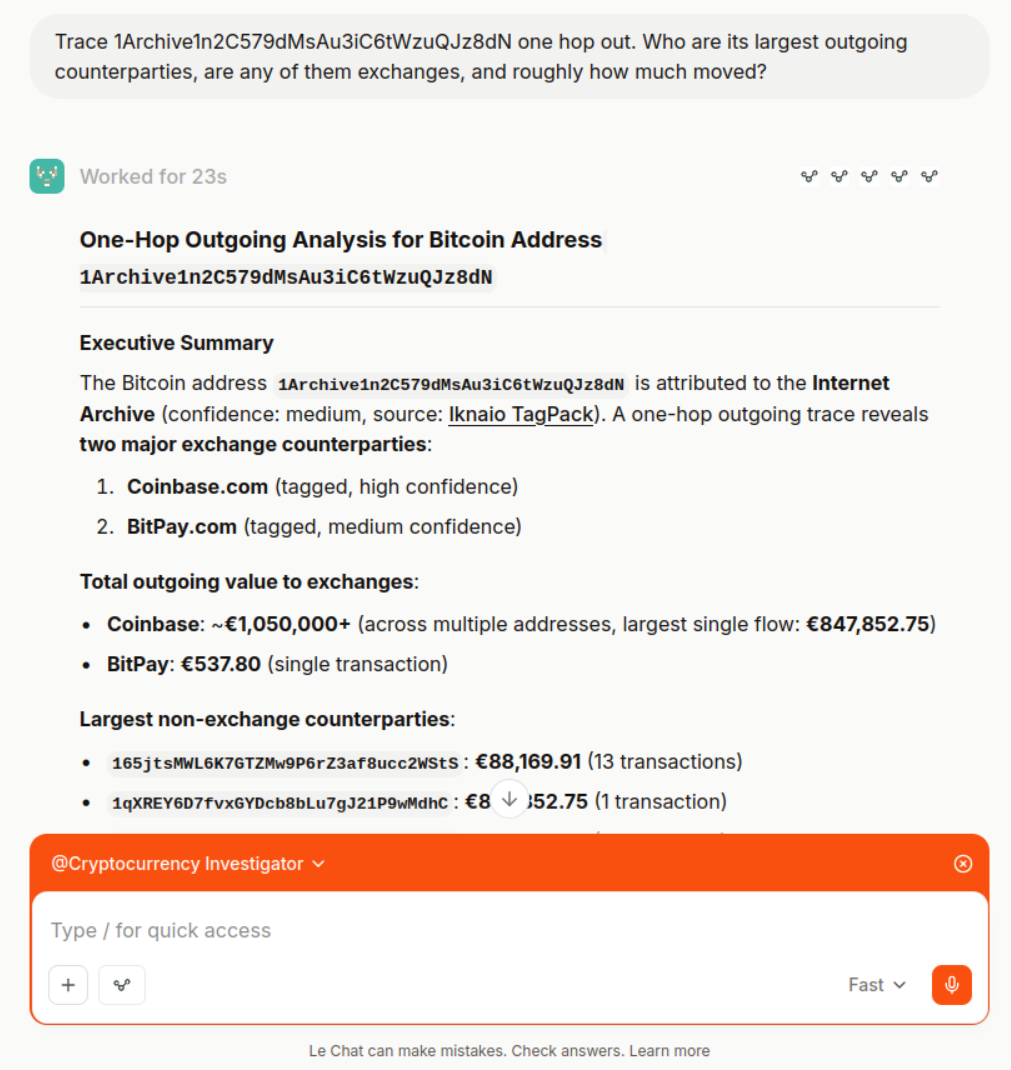
Before any setup, here’s the payoff. With the connector in place, this is a real exchange: one question in, a traced answer out, several live GraphSense lookups in between.
You: Trace
1Archive1n2C579dMsAu3iC6tWzuQJz8dNone hop out. Who are its largest outgoing counterparties, are any of them exchanges, and roughly how much moved?GraphSense agent:
1Archive…Jz8dNis attributed to the Internet Archive (Lookup Address). One hop out, its largest outgoing flows go to untagged addresses: roughly €848,000 in a single transaction to1qXREY6D…wMdhC, and about €88,000 across 13 transactions to165jtsMW…2WStS(List Neighbors). Two counterparties carry exchange tags, Coinbase (high confidence) and BitPay (medium), though the amounts routed to them are comparatively small. Note: those tags are single-source, so treat them as leads to verify, not conclusions.
One question in, a sourced answer out. The rest of this post is how to get there.
What is MCP, briefly
The Model Context Protocol is an open standard for giving AI assistants access to external tools and data. An MCP server offers a set of tools. An MCP client (here, Le Chat) finds those tools and lets the model use them while you chat. The model decides when to use a tool and what to ask it for, and the server runs the request against the real backend and hands the results back.
The GraphSense MCP server covers the read-only side of the GraphSense API: address and cluster lookups, transaction detail, neighbor graphs, tags and actors, block and rate data. Each tool is a focused, clearly described action. The model never touches the database directly. It only ever uses these tools, and the server decides what they can and cannot do.
What you’ll need
- An Iknaio account on a plan that includes the MCP server, namely the Professional and Institutional tiers (see Packages ).
- Your GraphSense API key, which you received in your welcome email. If you do not have one, reach out at contact@iknaio.com .
- The MCP server endpoint URL:
https://api.iknaio.com/mcp. - A Le Chat account. Custom MCP connectors require a plan that supports them, so check your Le Chat plan before starting.
Step 1: Add the connector
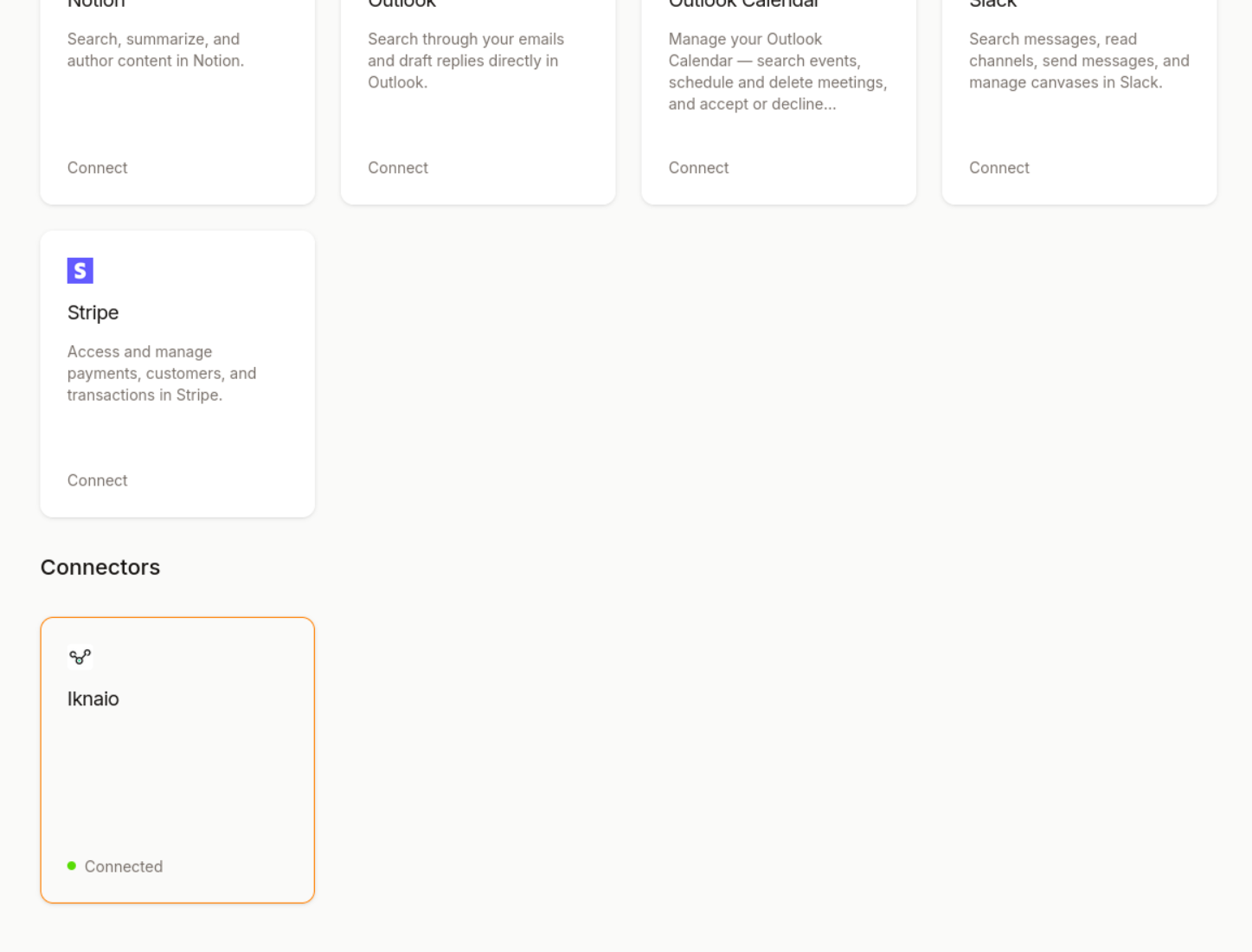
In Le Chat, open Context → Connectors (chat.mistral.ai/connections ). This is the panel that lists both the built-in connectors and any custom ones you’ve added.
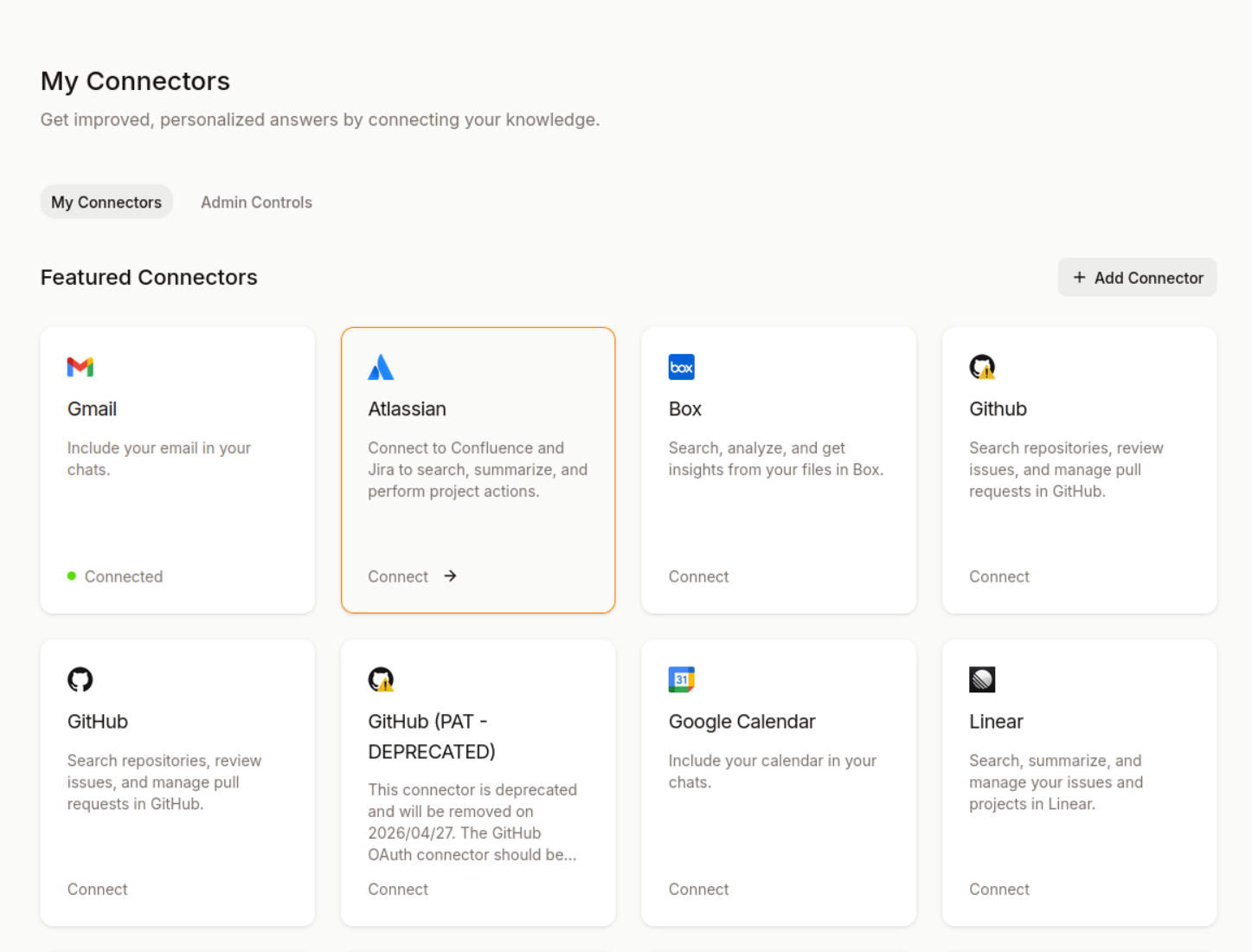 Click + Add connector in the top right. In the dialog that opens, switch to the second tab, Custom MCP connector: that is the form for pointing Le Chat at the Iknaio GraphSense MCP server. Fill in:
- Name: something recognizable like
GraphSenseorIknaio GraphSense. - Connector Server: the GraphSense MCP endpoint,
https://api.iknaio.com/mcp. - Authentication Method: select API Token Authentication. Set the header name to
Authorizationand the type toBearer, then paste your GraphSense API key into the Token field, which becomes the header value.
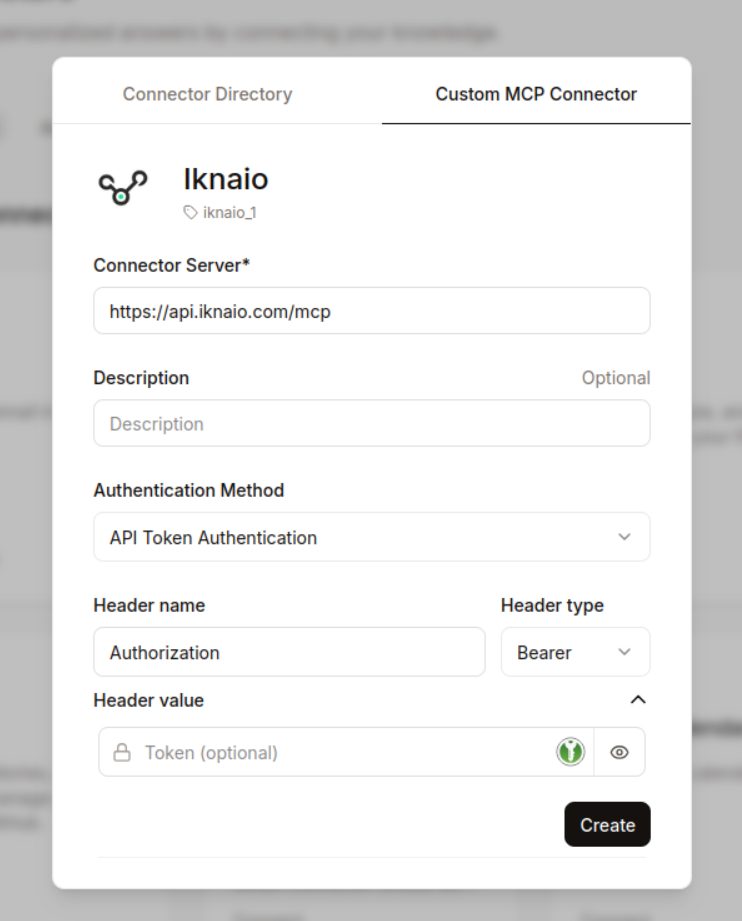
Click Create. Le Chat checks the connection with your key and adds the connector. When the connection succeeds, the connector shows a green indicator and reads as Connected.
Step 2: Enable it in a conversation
Adding a connector makes it available, but it isn’t necessarily on for every chat. In a new conversation, open the tools/connectors control in the message composer and switch Iknaio on for this chat.
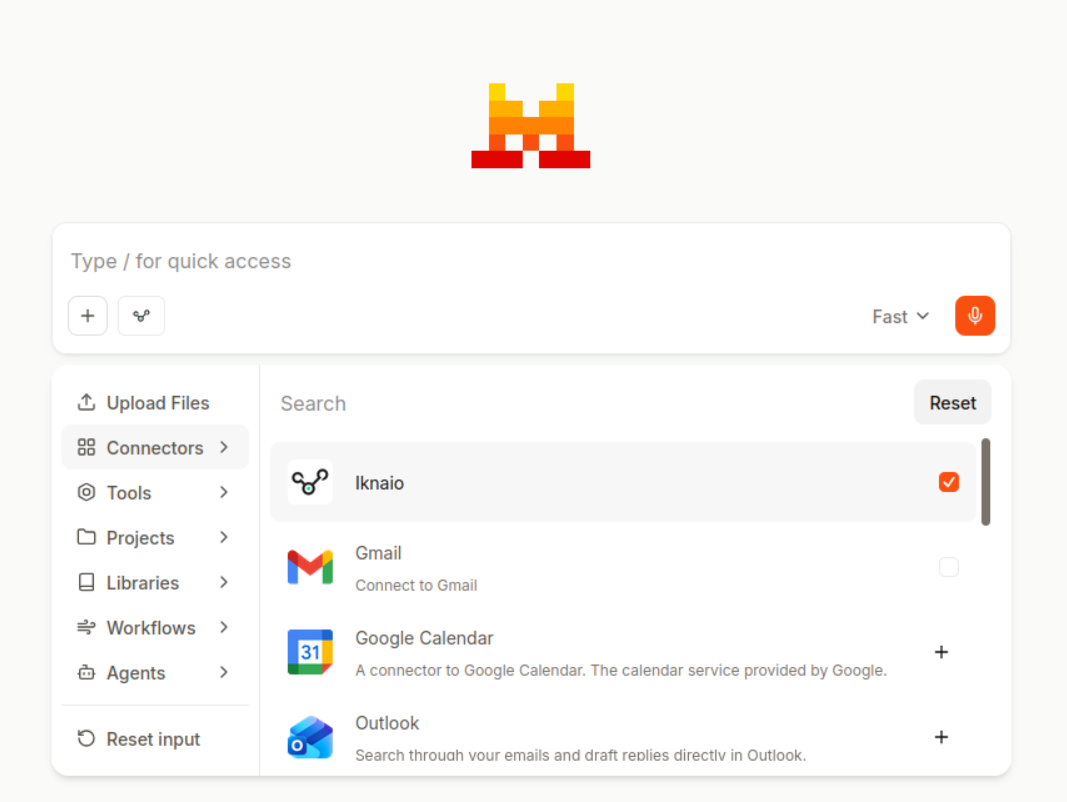 With the connector enabled, the model can now reach for Iknaio tools whenever a question calls for them.
Approving tool access
The first time the model wants to use an Iknaio tool, Le Chat pauses and asks for your approval. The prompt names the tool it is about to use and exactly what it will ask for, so you can see what is about to happen before it does. Approve it to let it through.
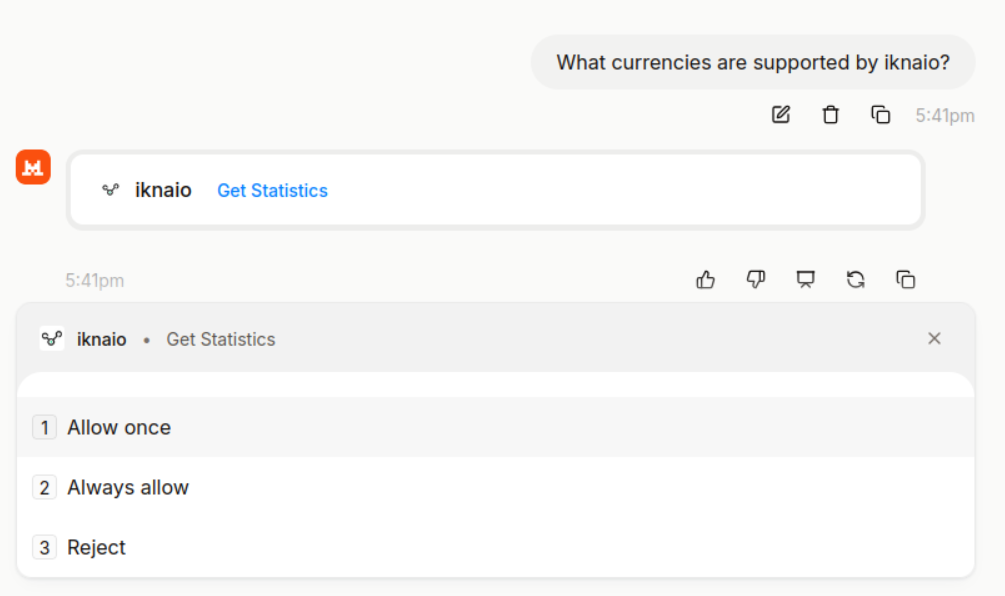 Le Chat usually offers to remember the choice, so you can allow a tool once and not be asked again, or keep approving each one while you are still getting a feel for what each tool does. Treat the prompt as a feature, not a nuisance. Read each one early on, and once you trust a routine, allow the Iknaio tools for the conversation to keep things moving.
Step 3: Your first queries
Start with something simple, just to confirm everything is connected:
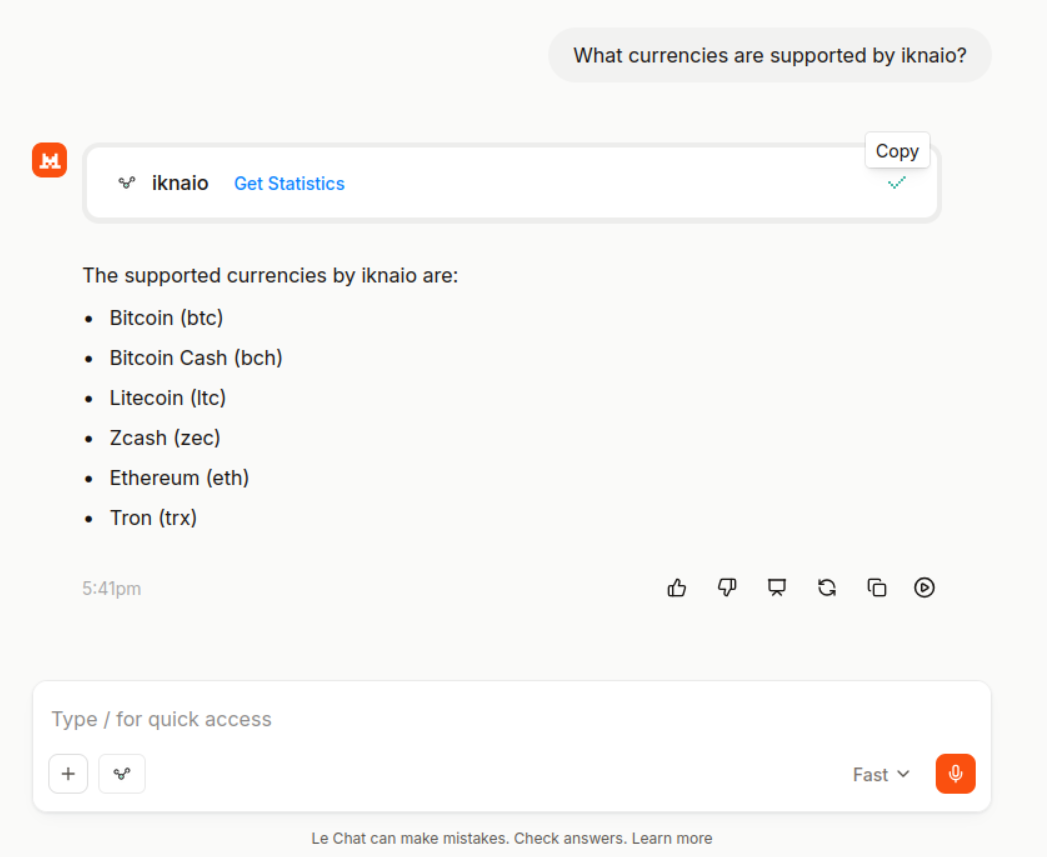
You: What currencies are supported by Iknaio?
The model uses Get Statistics and answers from the result: the list of supported networks. If you see that, the connector works.
 Now a real lookup. You can give the model just an address and let it figure out the rest:
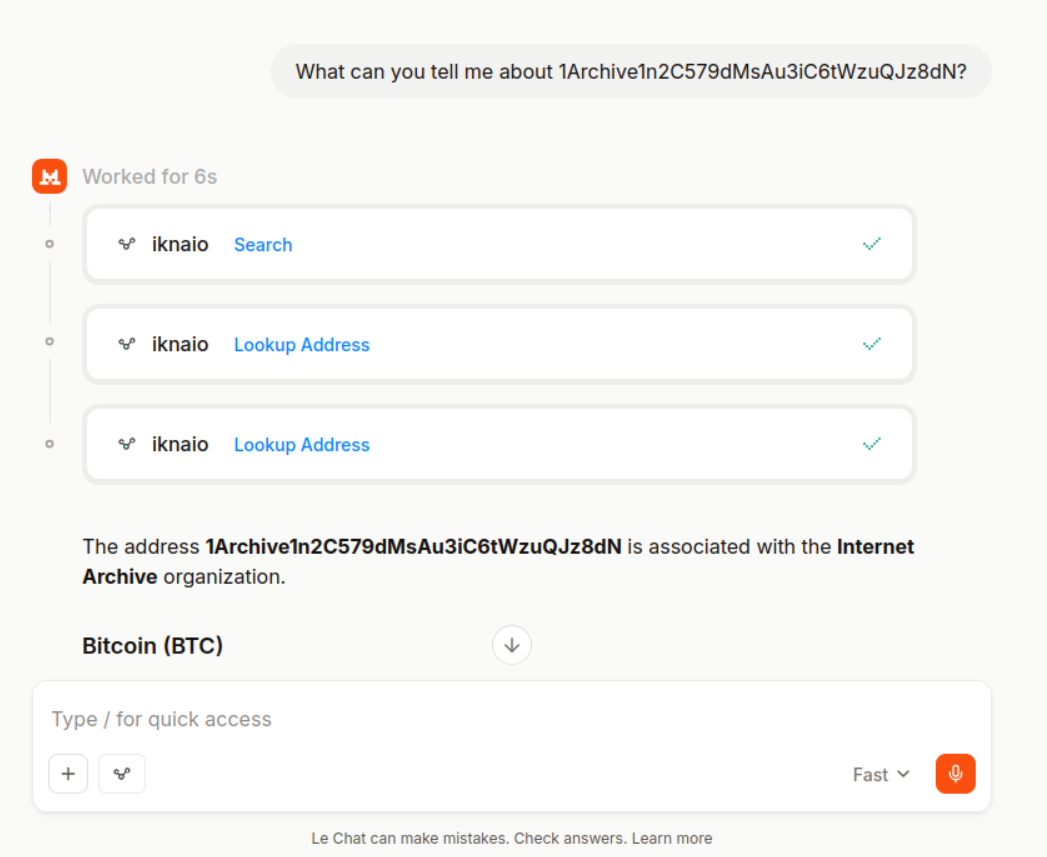
You: What can you tell me about
1Archive1n2C579dMsAu3iC6tWzuQJz8dN?
Behind the scenes the model typically uses Search to find the address, then Lookup Address for the full picture: balance, activity range, cluster membership, and tags. It comes back with something like “this is the Internet Archive’s public Bitcoin donation address, first active in 2013, with roughly 633 BTC received over its lifetime and only a small balance held today…”.
Most Le Chat clients let you expand a tool result to see exactly what was asked and what came back. Get into the habit, because it’s the difference between trusting a number and verifying it.
 A few prompts to try, each exercising a different tool:
- “List the outgoing counterparties of this address and flag any that look like exchanges.” → List Neighbors with a tag filter.
- “Break down this transaction: inputs, outputs, and where the money came from.” → Lookup Tx Details with upstream tracing.
- “What’s in Bitcoin block 800000?” → Get Block / List Block Txs.
- “What was 1 BTC worth in EUR at that block?” → Get Block By Date / Get Exchange Rates.
Step 4: Following a trace in conversation
The MCP interface is at its best when one answer feeds the next. Because the model keeps the conversation in context, you can trace interactively without re-pasting identifiers. Using the same Internet Archive address as above so you can reproduce it:
You: Take
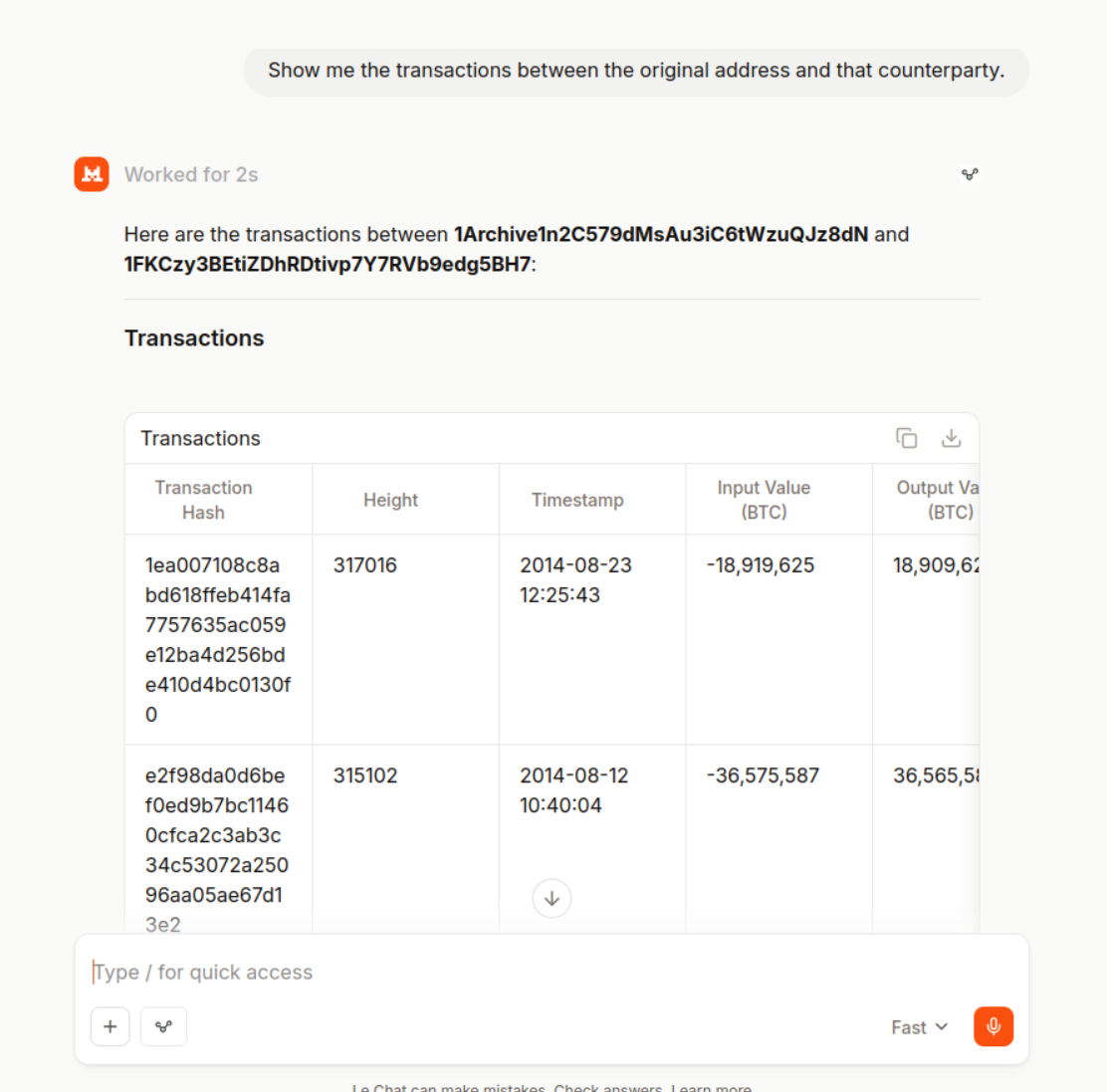
1Archive1n2C579dMsAu3iC6tWzuQJz8dN. Who are its top outgoing counterparties by value?You: For the second one, pull its tags and tell me if it’s attributed to anyone.
You: Show me the transactions between the original address and that counterparty.
That’s List Neighbors, then Lookup Address, then List Txs For: three tools, stitched together by plain English. The address is a well-known, stable one, so you’ll get a sensible trace to follow along with. Swap in any address and the shape of the conversation is identical.
Step 5: Validate in Pathfinder (beta)
Beta: the Build Pathfinder File tool is new and still being refined. Expect rough edges, and please send feedback .
The MCP workflow shifts the exploration burden onto the model: instead of clicking through addresses or writing scripts, you ask, and the model runs the calls and writes up the answer. That is a real productivity gain, but the underlying truth doesn’t change: an AI can be wrong. A name it pulls from a tag might be the wrong cluster, a trace it stitches together might miss the branch that mattered. Anything that goes into a report still needs a human to verify it.
The server makes that handoff explicit. One of the tools, Build Pathfinder File, takes the addresses and transactions the model has been working with and packages them into a .gs file, GraphSense’s native graph format. Drop the file into Pathfinder
and the investigation comes back as a graph: every node, every edge, ready for you to expand, prune and verify visually.
You: Trace the outgoing transaction path from the address
1Archive1n2C579dMsAu3iC6tWzuQJz8dNto Coinbase (at most 4 transactions). Provide the results in a GraphSense file format for visualization in Pathfinder.
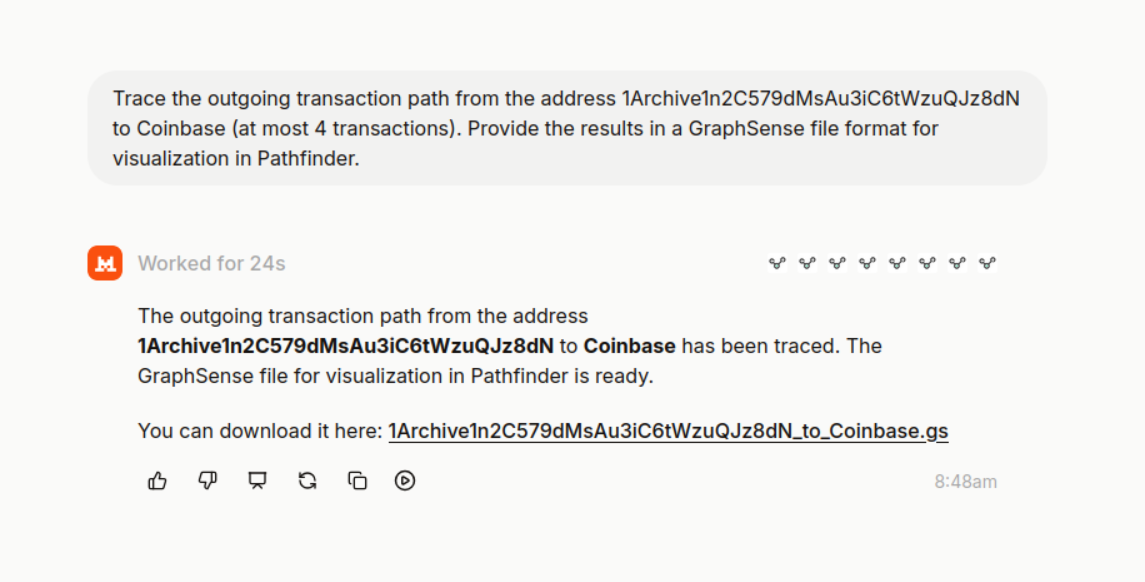
Click the download link, then open the GraphSense file in Pathfinder. The model’s trace comes back as a graph: the Internet Archive address on the left, up to four outgoing edges fanning out to Coinbase clusters, each edge labelled with date and BTC amount, ready for you to expand, prune and verify.
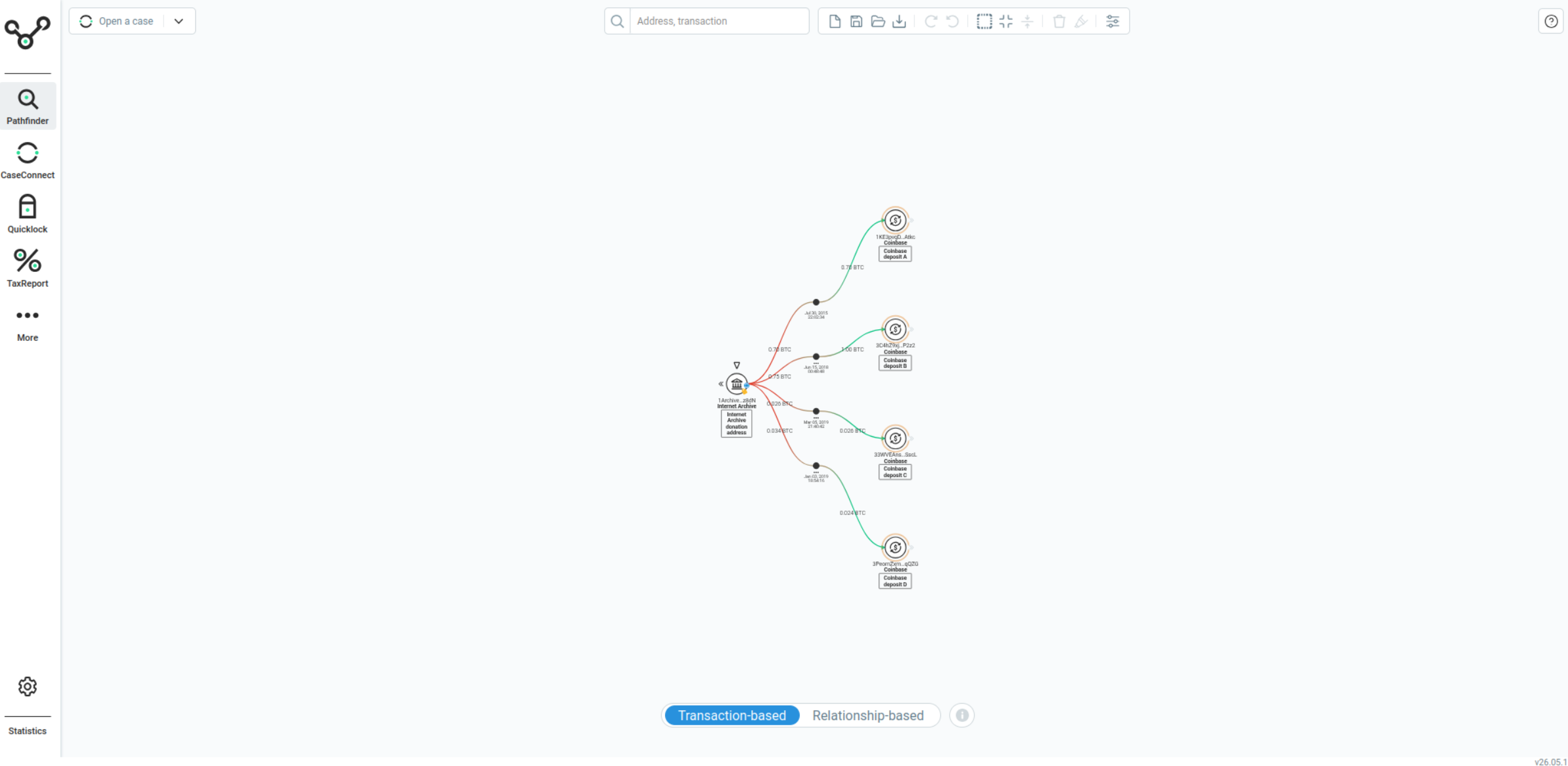
Your file might not look exactly like the one above, and that is fine. The model decides which paths to follow and which to drop, so the same prompt can produce a slightly different subgraph each time. The point isn’t to reproduce this exact picture, it is to get a starting graph in Pathfinder fast, and then refine it from there.
That closes the loop. The model does the searching and stitching, you do the verification, and the same backend serves both ends of the workflow.
Step 6: Make it repeatable with an agent
Asking questions one at a time is useful, but you end up re-typing the same setup each time: which tools to reach for, in what order, how to format the answer, what caveats to apply. An agent saves all of that. It is a named, reusable configuration with its own instructions and its own connectors.
Agent instructions are where you write down how the work should be done, and where you draw the lines the agent must never cross. On the procedure side, you spell out which tools to reach for, in what order, and how to shape the output. On the safeguards side, you set the rules the agent must always follow and must never break: always state the network, always cite the tool result behind a number, never present a cluster-level tag as fact, and say so plainly when a tool returns nothing instead of guessing. You can also bound its scope, telling it to stop and ask rather than tracing further, or to escalate instead of drawing a conclusion. Those rules turn a capable but improvising model into something that behaves predictably enough to trust with case work.
That predictability is the real payoff. The agent runs the task the same way every time, so you can hand it a batch of addresses and get one comparable result per address instead of a freeform answer you have to read closely to compare. And because an agent is just a saved object, you can share it: a senior analyst’s method, rules and hedging and all, becomes something the whole team runs identically, without everyone having to remember the right prompt. Le Chat’s Agent Builder (chat.mistral.ai/agents ) is where you set this up.
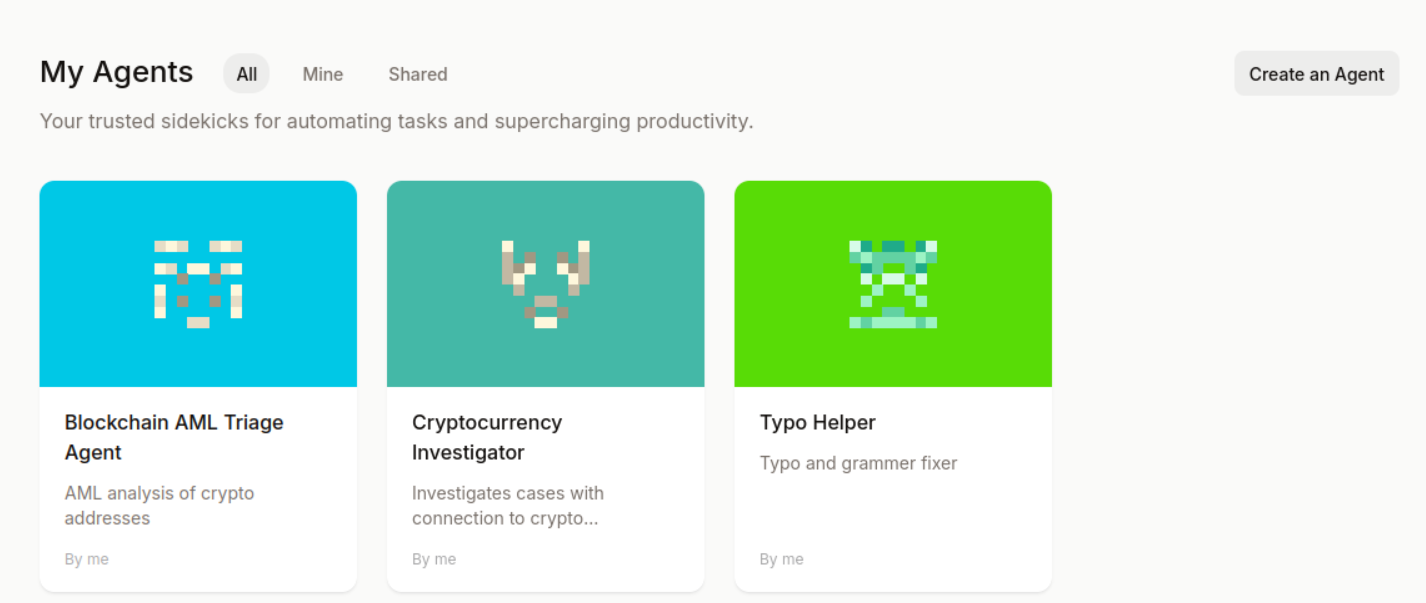 Create a new agent, give it a name and description, and (the important part) attach the Iknaio connector to it so the agent can call the tools.
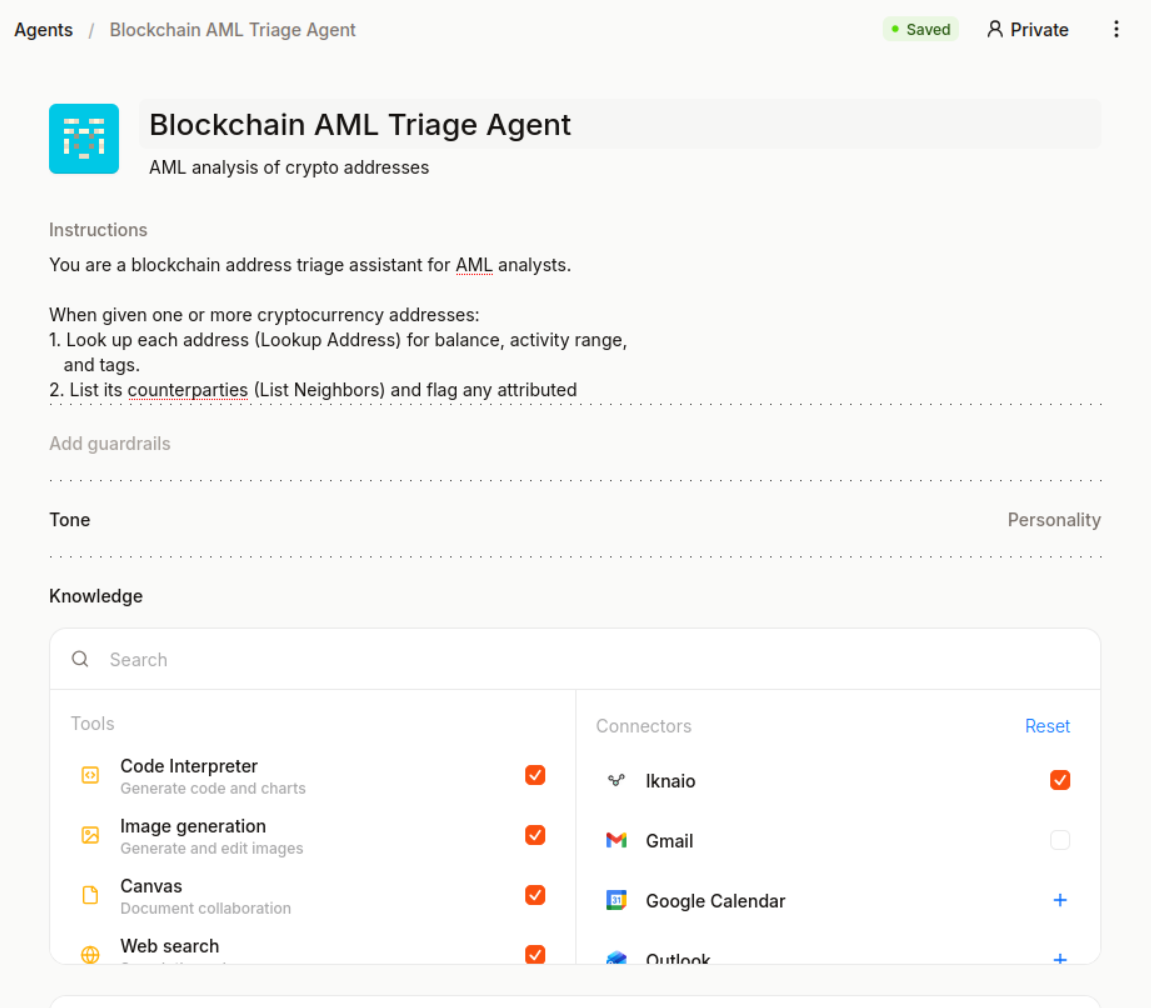 Then write the instructions. Here’s a starting point for a Blockchain AML Triage Agent, the kind of thing you’d run over a list of addresses from a watchlist or an exchange’s deposit feed. Copy and paste it into the Instructions field of your agent configuration (shown in the screenshot above):
You are a blockchain address triage assistant for AML analysts.

When given one or more cryptocurrency addresses:
1. Look up each address (Lookup Address) for balance, activity range,
   and tags.
2. List its counterparties (List Neighbors) and flag any attributed
   to exchanges, mixers, or sanctioned actors.
3. Produce a short risk note per address: identity (if attributed),
   notable exposure, and a recommended action (clear / review / escalate).

Rules:
- Always state the network explicitly.
- Distinguish address-level attribution from cluster-level attribution.
  Cluster tags are heuristic: present them as hints, never as fact.
- If a tool returns nothing, say so. Do not infer.
- Cite the tool result behind every concrete number.
- Open with an executive summary: the key findings in a single paragraph,
  no bullet points.
- Shorten addresses for readability.
Save it, and you have a reusable analyst you can hand a batch of addresses to.
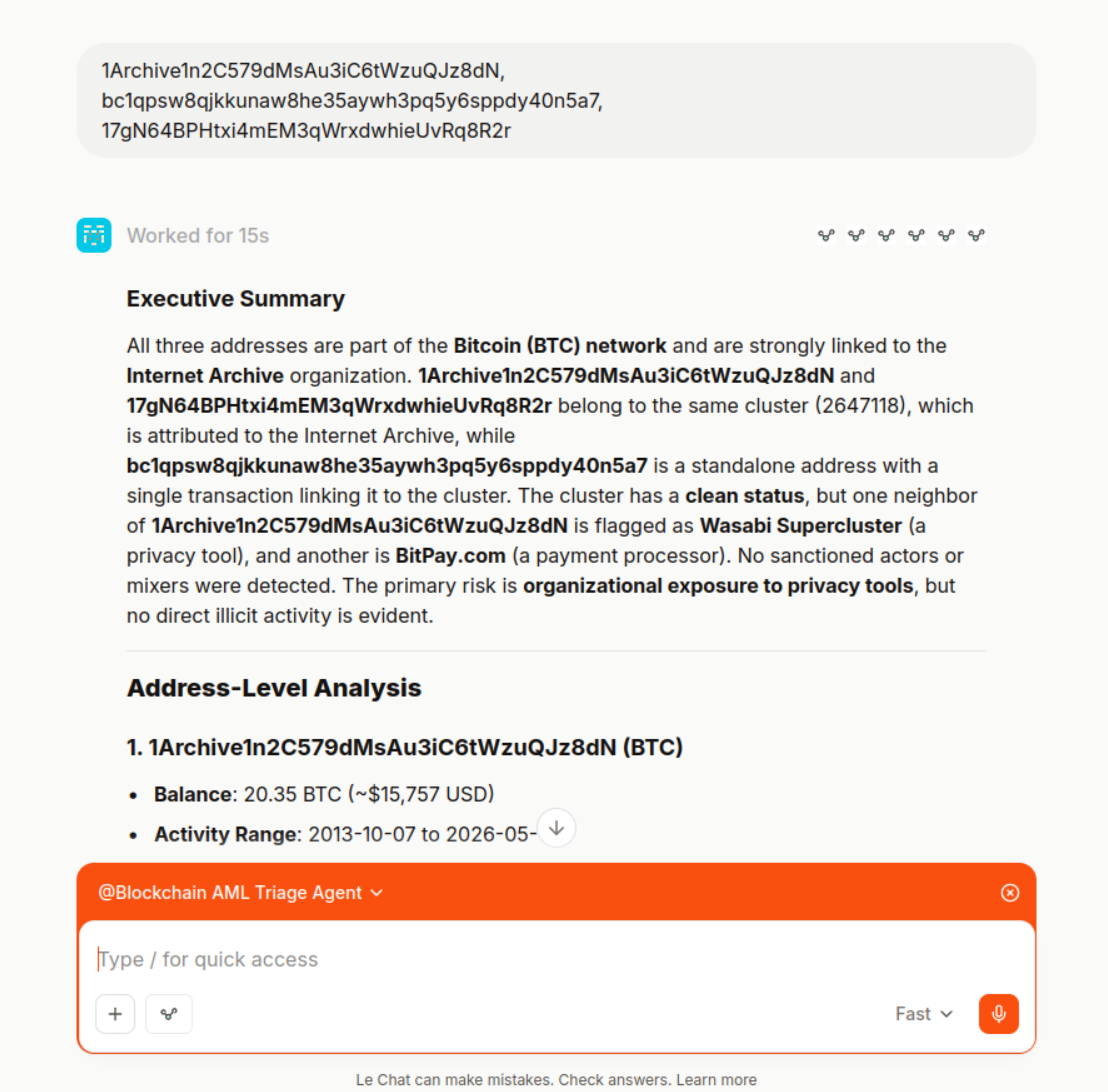 The instructions do real work here. Without them, the model improvises, but with them you get the same structured output every time, the same hedging on cluster tags, and the same “say so when a tool returns nothing” discipline. An agent is only as good as its brief.
Practical notes
- Verify the numbers. The model summarizes, but the tool results are the source of truth. Expand tool calls when a figure matters, and prefer agents that cite the call behind each number.
- Read-only by design. Every GraphSense MCP tool is a read. The server cannot move funds, write tags, or change anything, so the worst an unlucky prompt can do is ask a wrong question.
- The server guides the model. Many tools carry detailed descriptions and guardrails (compact result shapes, pagination caps, sensible defaults). You benefit from these without configuring anything.
- Big results paginate. Hub addresses can have thousands of neighbors, so the server pages and caps results. If an answer feels truncated, ask the model to continue, since it has the pagination cursor.
- Agents fan out, so budget for it. A single triage prompt can turn into a dozen or more tool calls, and every call is a round trip that costs Le Chat message/usage allowance on one side and GraphSense API quota on the other. A chatty agent run is not free on either meter. Keep batches modest, narrow the instructions, and watch both quotas before pointing an agent at a long list.
- Keep a human in the loop. The agent produces leads and summaries, not decisions. Before its output feeds a report or any automated step, have a person check it against the underlying tool results.
- One connector, many surfaces. The same MCP server works with any MCP-capable client. Le Chat is the walkthrough here, but the connector setup is the only part that’s Le-Chat-specific. Just note that the EU-only property comes from the combination. Point the connector at a non-EU chat client and you give that guarantee up.
Where this fits, and where it doesn’t
The MCP server is a third way in, not a replacement. The honest one-line guide: reach for Pathfinder
when the question is visual and you need to see the graph, the graphsense CLI
when the work is reproducible and bulk, and the MCP server when you’d rather just ask, or have an agent ask on your behalf.
So it’s worth being clear about what the MCP path is not good at:
- Not for reproducible bulk work. The model doesn’t work exactly the same way twice. Ask the same thing again and you get a slightly different run. Enriching ten thousand addresses identically every time is a CLI job, not a chat job.
- Not for visual exploration. A chat window can’t show you a graph, so to see how funds branch and rejoin, open Pathfinder.
- Not a system of record. A conversation isn’t an audit trail. When an MCP session surfaces something that matters, reproduce it deterministically (in Pathfinder or via the CLI) before it goes near a report.
What it is good at is the front of the funnel: triage, “what is this address”, ad-hoc questions, and agentic workflows that hand you a ranked shortlist to take into the other two tools. All three share one backend and one set of tags, so an address looks the same whichever door you come in through.
The MCP server is part of the GraphSense platform on the Professional and Institutional plans . If your plan does not include it yet, or you have questions about setting it up, get in touch .